


Link to Windows
3.860.40K Reviews
App Specs
- Version
- 1.26071.104.0
- Updated On
- License
- Free
- Downloads
- 1,000,000,000+
- Developer
- Microsoft Corporation
- Categories
- Productivity
- Platform
- Android, iOS
Screenshots
 Analysis by AppCompare
I find phone-to-PC tools most useful when they remove small interruptions rather than promise to replace either device. If I’m writing at my computer, a quick glance at a phone notification or a reply to a text can save me from picking up the handset and losing my place. Link to Windows is built around that kind of everyday convenience: it connects an Android phone with a Windows PC so selected parts of the phone experience are available at the desk.
Start by deciding what you want to bring to the PC
Before installing anything, I’d ask myself which interruptions I’m trying to reduce. If the answer is messages, calls, notifications, or recent photos, this app has a clear purpose. If I mainly want to move large folders, back up a whole phone, or manage every file from a desktop, a dedicated file-transfer or backup method may suit me better. The value here is less about replacing those tools and more about keeping a few common phone tasks within reach while I work.
That distinction matters because the connection is most satisfying when I use it as a companion, not as a complete copy of my phone. I can keep a conversation moving without switching screens, but I still treat the phone as the main device for anything that needs its full interface. That expectation makes the app easier to judge fairly.
Guides and Analysis on Link to Windows
What makes this connection useful day to day
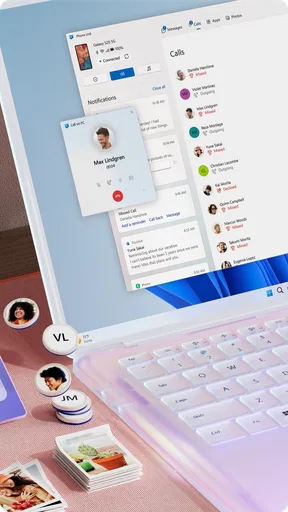
The strongest fit is a desk-based routine. I might be reviewing a document, see a message appear on the computer, answer it, and return to the document without breaking concentration. A call through the PC can also help when my phone is nearby but I’d rather keep my hands on the keyboard. These are modest conveniences individually; repeated over a working day, they can make the phone feel less demanding.
Photos are handy in a different way. If I’ve just taken a picture for a presentation or need to refer to a recent image while writing, being able to reach recent phone photos from the computer avoids a cable-based detour. I would still choose a deliberate file-transfer workflow for a large batch or a carefully organized archive. For one image I need right now, the quick-access approach is the point.
Notifications deserve a little setup rather than a blanket yes. I’d let through alerts that genuinely need a response and silence the rest, otherwise the computer can become another noisy screen. A useful habit is to decide which apps deserve desktop attention before a busy work session, then revisit that choice when the routine changes. The goal is not to reproduce every phone interruption; it is to make a smaller, more manageable selection visible.
Where it sits among the alternatives
Compared with checking the phone directly, the benefit is obvious: I can stay at the PC for short interactions. Compared with cable transfers, it is better suited to quick access than to deliberate, bulk file handling. Cloud storage can be a stronger choice when I need files to be organized and available across several devices, while a phone’s built-in backup options are more appropriate for safeguarding its contents. Those tools solve different problems, so I wouldn’t treat them as interchangeable.
Worth Reading Before You Choose

Ludo King Makes the Most of the Minutes Between Plans

Baby Panda World Brings Quick Play to Modern Phones, but Its Game Library Feels Busy

ESPN’s Live Game View Makes Following Close Games Easier

QuizzLand Review: A Good Fit for Short Trivia Breaks, Not Every Player

Basketball Stars: Multiplayer Is Fast, but Can It Recover When Matches Go Wrong?

WEBTOON Turns Phone Updates Into a Better Reading Routine
The app is especially appealing if Windows is already where I spend much of my day and my phone runs Android. It is less compelling if I rarely use a PC, prefer to keep phone activity off the desktop, or need a workflow centered on a different computer environment. I’d also skip it if my main goal is to control a mobile game from a PC: screen mirroring can be useful for viewing or checking an app, but it is not the same as turning the computer into a full mobile gaming setup.
Getting Started with Link to Windows
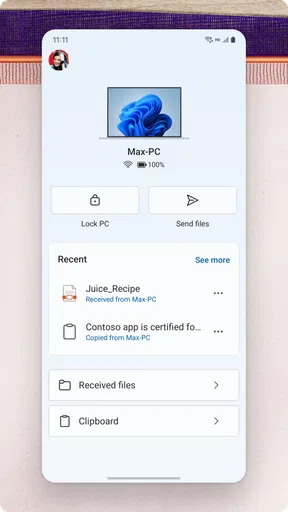
First things first, setting up Link to Windows is a breeze. You just need to have the app installed on your Android device and ensure your PC is running Windows 10 or later. The app guides you step-by-step, so even if you're not tech-savvy, you’ll find it straightforward. You pair your devices using a QR code, and before you know it, you’re ready to roll.
Features that Make Life Easier
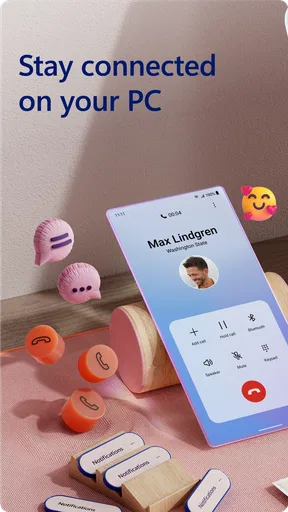
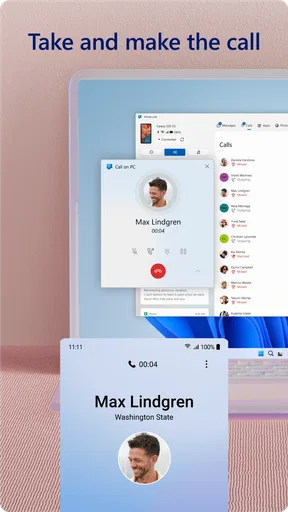
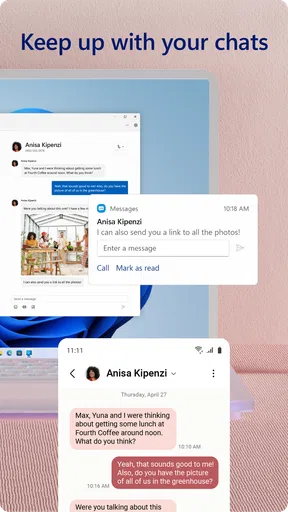
One of the standout features is the ability to view and respond to text messages from your PC. No more switching between devices when you're in the middle of a project. Your texts pop up right on your computer screen, making communication seamless. Plus, you can even make and receive calls via your PC as long as your phone is nearby.
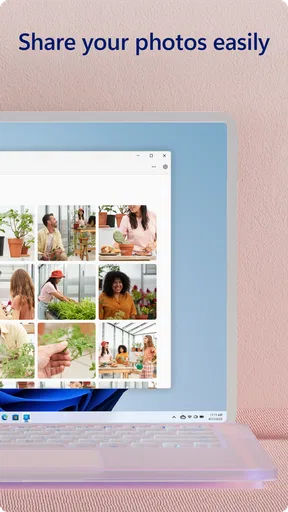
Another feature I love is the photo access. Imagine you’ve just snapped a perfect shot on your phone, and now you want to use it in a presentation on your PC. With Link to Windows, you can access your most recent photos without fumbling with cables or transferring files manually. It’s all right there, synced and ready to go.
App Notifications and More
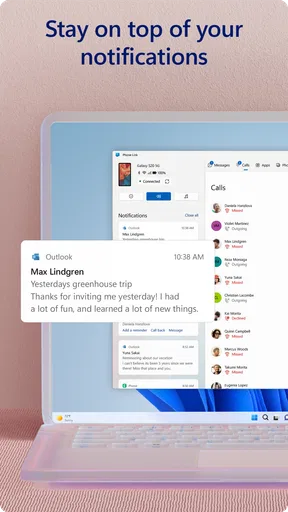
App notifications on your PC is another slick feature. Whether it's a social media alert or a calendar reminder, you can customize which notifications get through, helping you maintain focus on what matters. It’s like having a personal assistant filtering out the noise and only delivering the essentials.
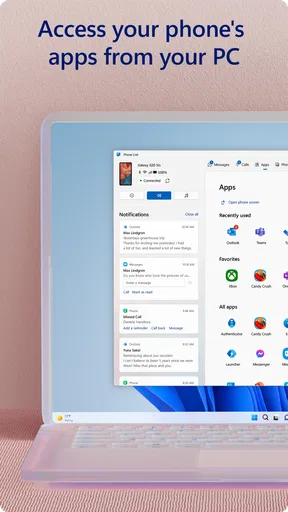
And if you’re into gaming, you’re in for a treat. While the app doesn’t support playing mobile games on your PC, it does let you mirror your phone’s screen. It's not the same as a full-on gaming laptop experience, but it’s handy for checking out apps that don’t have a desktop version.
The User Experience
Overall, the user interface is intuitive. It’s clean, straightforward, and doesn’t overwhelm you with options. You can customize the app to fit your needs, which is a nice touch. The app does seem to use a fair bit of battery, so keep that in mind if you’re planning on using it extensively. However, the convenience it brings often outweighs this minor downside.
How the connection fits a real routine
Here’s how I’d use it on an ordinary workday: I leave the phone nearby, keep the PC connection available, and handle a short text or call without reaching for the handset. If a photo arrives or I take one during a break, I can check whether it is the image I need before deciding whether to move it into a more permanent folder. That division keeps quick tasks quick and leaves important file organization to a method designed for it.
There is a trade-off in having two screens connected. A notification that appears on the PC can be useful, but it can also expose personal information in a shared workspace. I’d be selective about which alerts appear and avoid assuming that a work monitor is a private place to read every message. The same filter that improves focus also makes the setup more comfortable in an office, classroom, or home shared with other people.
Pairing, permissions, and common friction
The QR-code pairing described in setup is simple, but I’d make sure both devices are at hand and follow the prompts on each screen rather than treating installation as a one-sided process. Features that involve calls, photos, texts, or notifications naturally depend on the relevant access being allowed. If one part does not behave as expected, checking the app’s connection and the permissions for that specific task is a more useful first step than repeatedly pairing everything from scratch.
Calls have a practical condition: the phone needs to remain nearby. That makes the feature a convenience for a desk, not a way to leave the phone at home and use the PC as a substitute. Likewise, a recent-photo view is ideal for grabbing something just taken, but it should not be confused with a complete photo library or a robust archive. Knowing these boundaries avoids the most common disappointment: expecting a bridge between devices to become a full device-management system.
Who benefits most, and who can pass
I’d recommend trying it if an Android phone and a Windows computer are both part of your everyday routine, especially if you often answer messages while working or want calls within reach of your desk. Students can use the same pattern to check a message without interrupting a reading or writing session, and anyone preparing a document can benefit from quick access to a recent phone photo. Its usefulness grows with the number of small phone tasks that would otherwise pull you away from the PC.
On the other hand, someone who works mainly from a phone, rarely sits at a Windows PC, or wants a comprehensive backup tool may get little from it. If uninterrupted focus is the priority, keeping notifications off the computer may be better than adding another place for alerts. And if the main need is moving many files, I’d choose a file-focused tool instead of judging this app by a job it is not designed to do.
Link to Windows is a free productivity app from Microsoft Corporation. It is rated for Everyone, has a 3.8 average from around 1.2 million ratings, and has been installed over a billion times. Its current version is 1.26051.96.0, and it first appeared on December 16, 2015. Those figures show that it is a widely used option, though I’d still base the decision on whether its particular phone-to-PC workflow matches my own habits.
Why You Should Try It
If you’re always on the move between devices, Link to Windows is a must-have. Whether you’re a professional needing seamless integration for work or just someone who loves having everything in one place, this app delivers. It bridges the gap between your phone and PC, streamlining your digital life in a way that feels almost futuristic.
While it doesn’t replace the need for a full-fledged phone or PC, it enhances how you use both. With continuous updates and improvements, Link to Windows is only going to get better. So give it a shot, and see how it fits into your tech ecosystem. You might just find it’s the missing link you’ve been looking for.
My recommendation
I’d try it if the main annoyance in your day is repeatedly picking up an Android phone while already working at a Windows PC. Start with messages and only the notifications you want to see; then add calls or photo access if those solve a real need. That small, selective setup gives you a fair test without turning the desktop into a second phone.
If you need broad file management, a dependable archive, or a distraction-free computer, another approach may be better. For quick interactions across a phone and PC, though, this is a practical convenience rather than a replacement for either device. I’d recommend it to people whose routine fits that narrow but useful purpose, and I’d skip it if the connection would add more noise than it removes.
Pros
- Seamless PC integration for Android users.
- Quick access to phone notifications on PC.
- Easy file transfer between devices.
- Supports app mirroring efficiently.
- Enhances productivity with multitasking.
Cons
- Limited functionality with iOS devices.
- Requires stable internet for best performance.
- Some features exclusive to Samsung devices.
- Initial setup can be confusing for novices.
- Occasional connectivity issues reported.
FAQs for Link to Windows
What is Link to Windows and how does it work?
Link to Windows is an app that connects your Android phone to your Windows PC, allowing you to access texts, photos, notifications, and more directly from your computer. It works by establishing a connection via Wi-Fi or mobile data, ensuring seamless integration between your devices for enhanced productivity.
Is Link to Windows compatible with all Android devices?
Link to Windows is compatible with most Android devices running Android 7.0 or newer. However, some features might be limited or unavailable depending on your device's manufacturer and model. It's advisable to check the app's compatibility details on the Google Play Store before downloading.
Are there any privacy concerns with Link to Windows?
Link to Windows prioritizes user privacy and security by requiring permissions for access to notifications, messages, and media. The app uses encryption to protect data during transfer. Users concerned about privacy should review the permissions requested and adjust settings accordingly to ensure they are comfortable with the level of access granted.
Does Link to Windows consume a lot of battery or data?
Link to Windows is designed to be efficient, but its impact on battery and data usage can vary based on your usage patterns. Frequent syncing and accessing large files can increase consumption. Users can manage settings to limit background activity or use Wi-Fi to reduce mobile data usage.
Can I make and receive calls using Link to Windows?
Yes, Link to Windows allows users to make and receive calls directly from their Windows PC. To use this feature, your phone and PC need to be connected via Bluetooth, and you must grant the necessary permissions. This feature enhances convenience by allowing you to handle calls without reaching for your phone.


